# How show PDF in vanilla JavaScript in Browser🤯
Yesterday I wondered how to display a PDF document on a website.
I tried with `iframe` to display the document but it didn't work on mobile devices😔.
After some time of searching, I found a solution using the Mozilla PDF.js library😏.
[Live demo](https://pdf-display-in-plain-js.vercel.app)
[GitHub repo](https://github.com/patik123/pdf_display_in_plain_js)
## Mozilla PDF.js
> A general-purpose, web standards-based platform for parsing and rendering PDFs.
Mozilla's PDF.js project is an open-source project licensed under the Apache 2 license, so it can be used in almost any application.
The library basically only allows us PDF files in the browser.
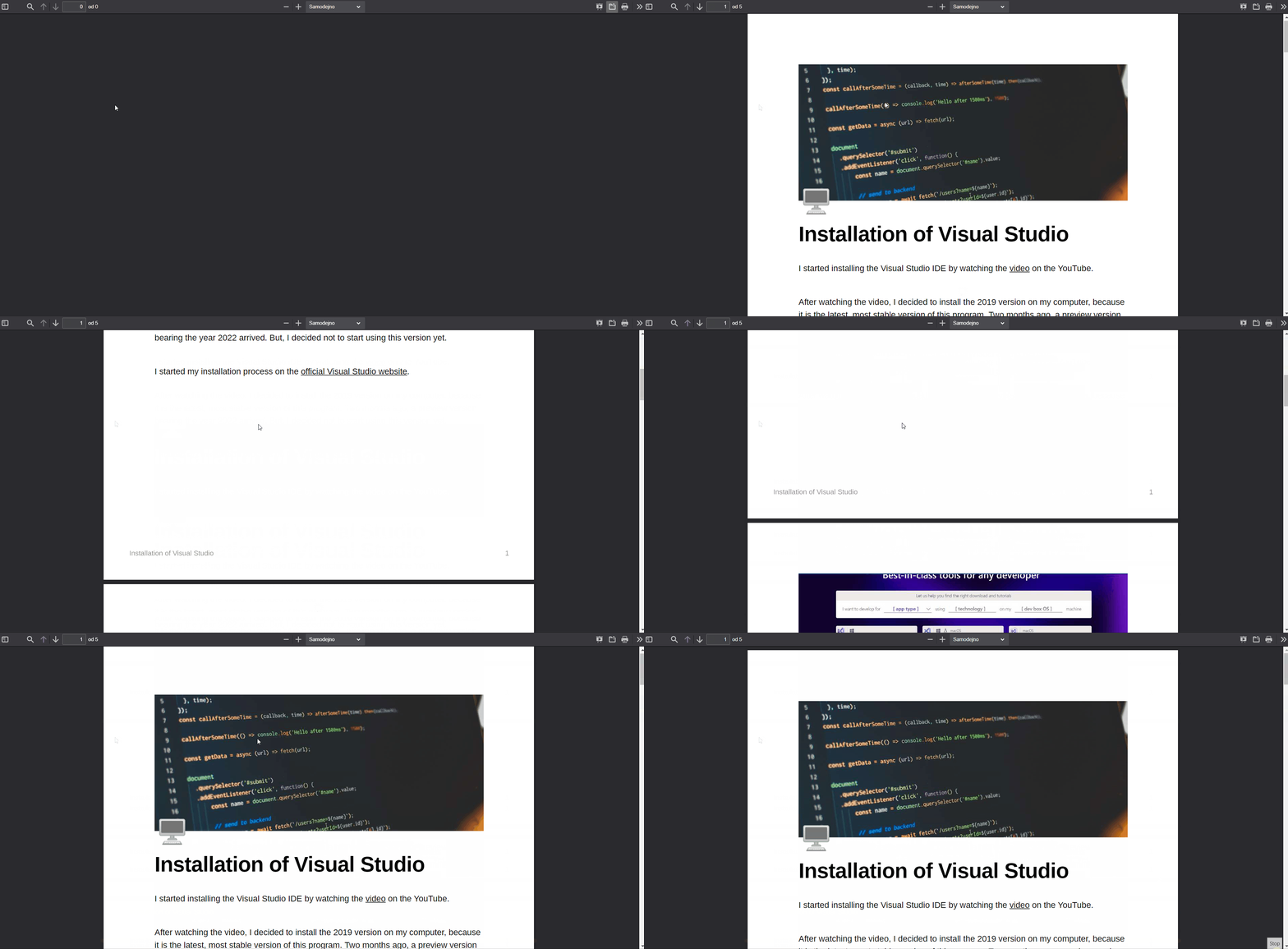
If you look in detail at the UI of the browser you will find that it is the same as in Mozilla Firefox, if you open the PDF in the browser.
A demo version of the browser is available at [this link](https://mozilla.github.io/pdf.js/web/viewer.html).
However, if you do not need all these features in your application then there is the option of using the PDF.js API.
[More about PDF.js](https://mozilla.github.io/pdf.js/)
## How to build PDF renderer
First, we need to add the PDF.js library to our website, we do it with a simple line.
I am using PDF.js version 2.0.943. In other versions, changes to the API may occur.
```html
```
Our app will consist of navigation keys with which we will be able to go to the next, previous page and enlarge or reduce the document.
```html
```
Our PDF document is displayed in a canvas element, so we need to embed it.
```html
```
Now let's add some JavaScript.
```jsx
var defaultState = {
pdf: null,
currentPage: 1,
zoom: 1
}
// GET OUR PDF FILE
pdfjsLib.getDocument('file.pdf').then((pdf) => {
defaultState.pdf = pdf;
render();
});
// RENDER PDF DOCUMENT
function render() {
defaultState.pdf.getPage(defaultState.currentPage).then((page) => {
var canvas = document.getElementById("pdf_renderer");
var ctx = canvas.getContext('2d');
var viewport = page.getViewport(defaultState.zoom);
canvas.width = viewport.width;
canvas.height = viewport.height;
page.render({
canvasContext: ctx,
viewport: viewport
});
});
}
// FUNCTION GO TO PREVIOUS SITE
document.getElementById('previous').addEventListener('click', (e) => {
if (defaultState.pdf == null || defaultState.currentPage == 1)
return;
defaultState.currentPage -= 1;
document.getElementById("current_page").value = defaultState.currentPage;
render();
});
// FUNCTION GO TO PREVIOUS NEXT
document.getElementById('next').addEventListener('click', (e) => {
if (defaultState.pdf == null || defaultState.currentPage > defaultState.pdf._pdfInfo.numPages)
return;
defaultState.currentPage += 1;
document.getElementById("current_page").value = defaultState.currentPage;
render();
});
// FUNCTION GO TO CUSTUM SITE
document.getElementById('current_page').addEventListener('keypress', (e) => {
if (defaultState.pdf == null) return;
var code = (e.keyCode ? e.keyCode : e.which);
if (code == 13) { // ON CLICK ENTER GO TO SITE TYPED IN TEXT-BOX
var desiredPage =
document.getElementById('current_page').valueAsNumber;
if (desiredPage >= 1 && desiredPage <= defaultState.pdf._pdfInfo.numPages) {
defaultState.currentPage = desiredPage;
document.getElementById("current_page").value = desiredPage;
render();
}
}
});
// FUNCTION FOR ZOOM IN
document.getElementById('zoom_in').addEventListener('click', (e) => {
if (defaultState.pdf == null) return;
defaultState.zoom += 0.5;
render();
});
// FUNCTION FOR ZOOM OUT
document.getElementById('zoom_out').addEventListener('click', (e) => {
if (defaultState.pdf == null) return;
defaultState.zoom -= 0.5;
render();
});
```
We have now created a page where we can display any PDF on any device, without downloading.
Here is the look of the final version.
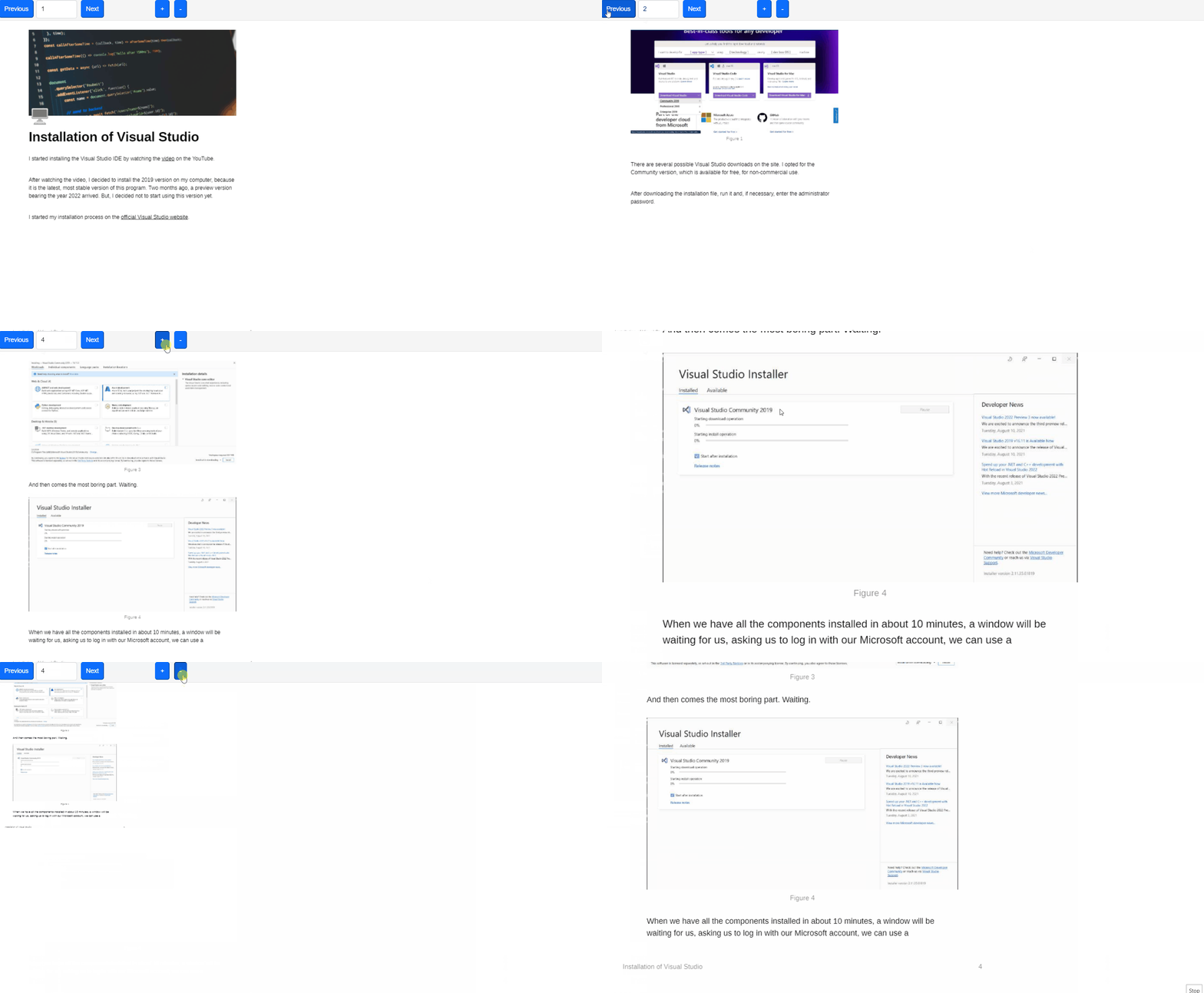
If you have a CV in PDF on your portfolio, you can now view it in your browser.
I hope this guide helped you, for even more content you can follow me on my [Twitter profile](https://twitter.com/Patik123_).
P.S.: Header image maked by @[Savio Martin](@saviomartin)'s [Slickr](https://slickr.vercel.app/).